
Installations are how you stop modpacks from eating vanilla worlds.
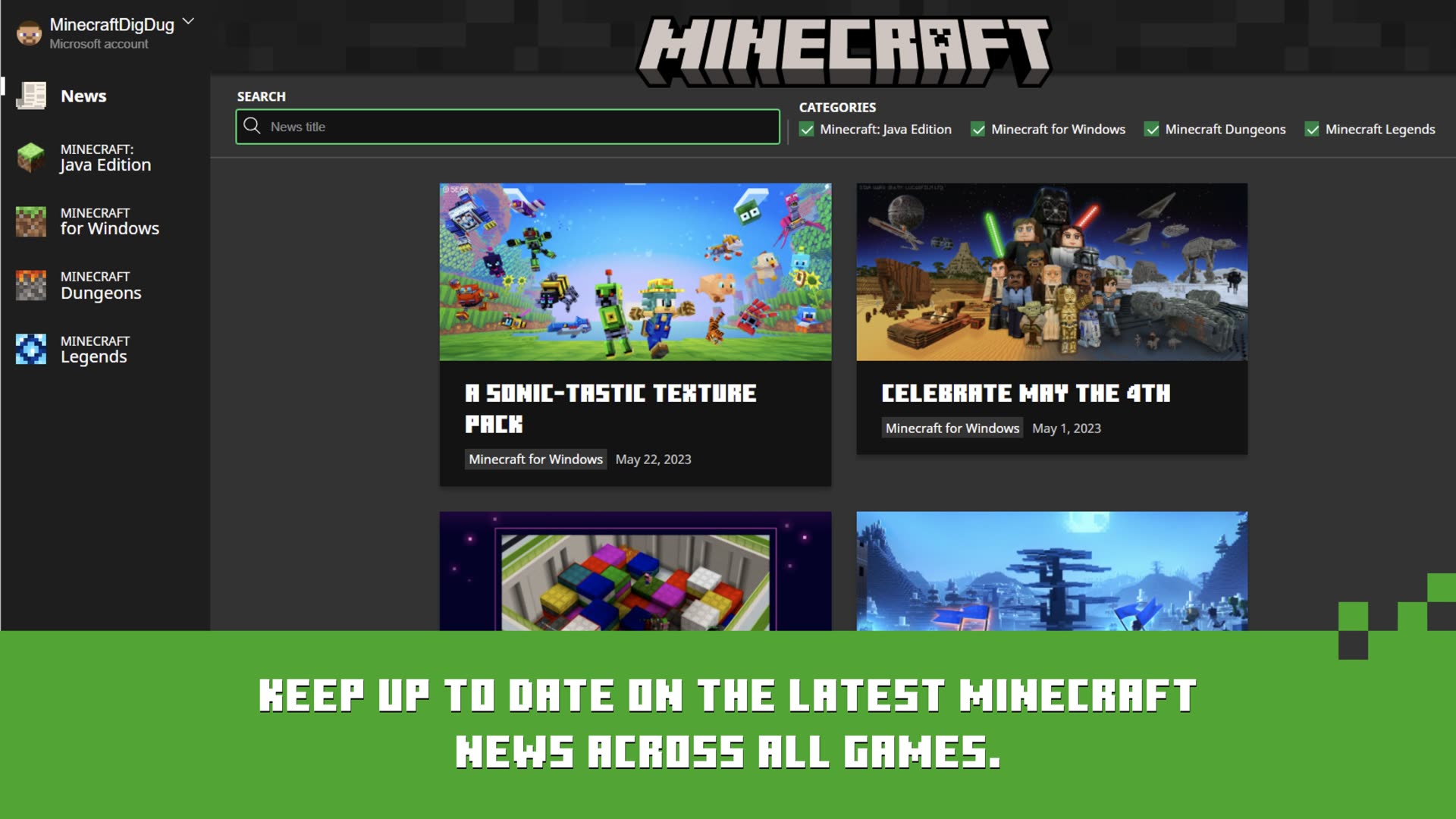
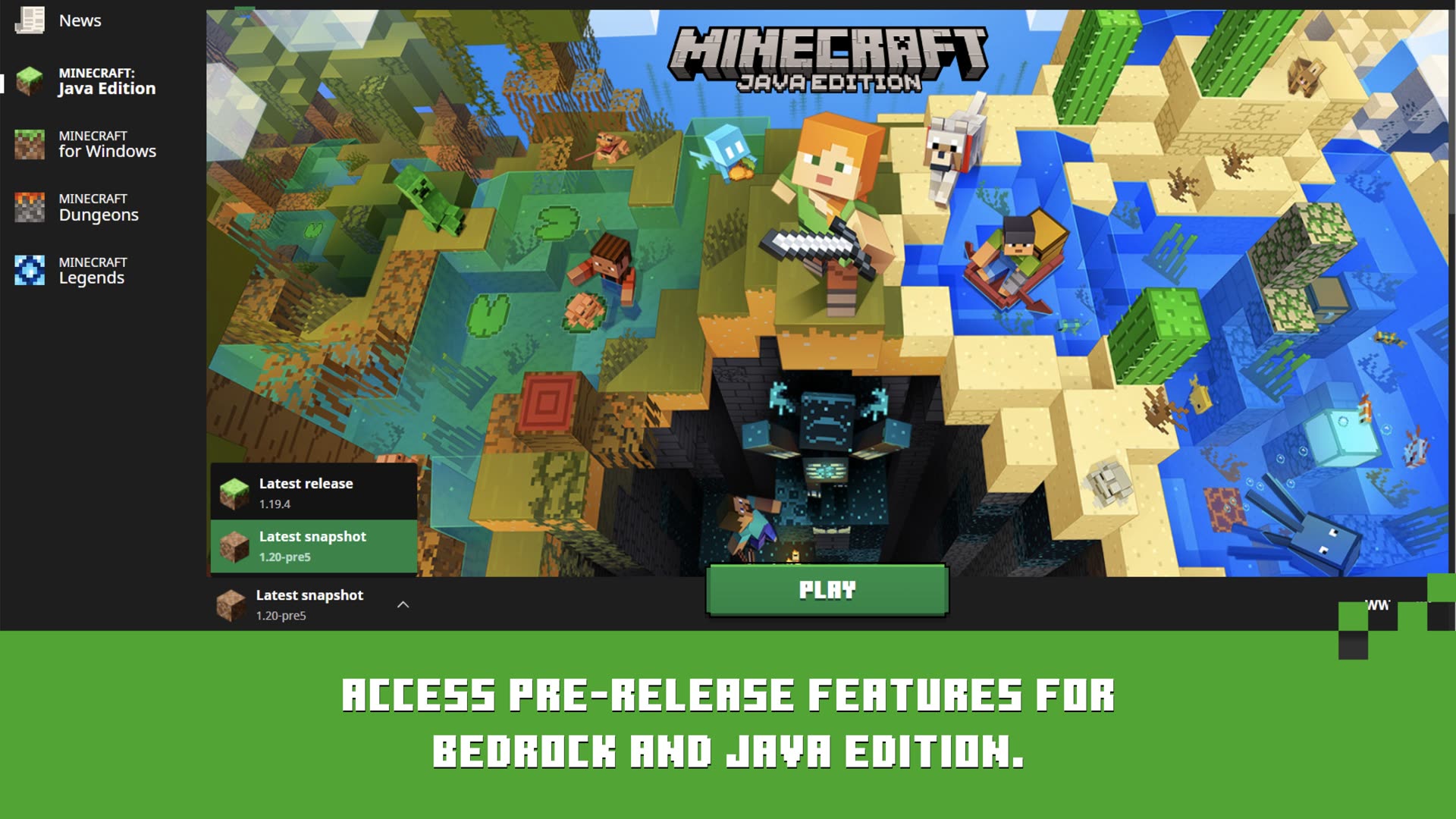
On the Java Edition tab, Installations is a profile list. Each row can pin a version, a folder, a resolution, and JVM arguments. Latest release and Latest snapshot are special rows you should not overwrite.
Create a profile that cannot wreck survival
- Open Minecraft Launcher → Java Edition → Installations.
- Enable Releases. Enable Snapshots only if you accept broken worlds.
- New installation → name it (for example
vanilla-1.21orfabric-1.21.4). - Browse a new game directory. Do not point a modpack at the default
.minecraftif that folder already holds the world you care about. - Save, select the row, Play once to generate folders.
Historical versions before Release 1.0 stay hidden until Settings → show historical versions. Mojang and the Wiki both warn: old versions can corrupt modern saves. Separate directory, backups, no experiments on the main world.
RAM heap helper
Heap is the memory you hand the JVM, not the sticker RAM on the laptop. Mojang’s 2026 recommended PC still defaults the game allocation near 4 GB. This helper stays conservative on purpose.
Paste heap as JVM arguments on the installation, for example -Xms2G -Xmx4G. Leave the Java executable on the bundled runtime unless you have a documented reason not to. Broken custom paths are a top crash cause.